What do you Need Help With?
Once the PDF opens in your browser or Google Drive:
On desktop, you can also use Ctrl+S (Windows) or Cmd+S (Mac) while the PDF is open.
Files download automatically on Windows PCs and laptops for a smoother experience.
How do I download PDFs from BCAHub?
Watch this quick guide to see the download process in action!
Word files open in Google Docs or Drive. To download:
Then download it quick and easy.
Alternatively, open it in Google Docs → File → Download → Microsoft Word (.docx).
The downloaded file will be saved directly to your local storage or Downloads folder, depending on your device settings.
How do I download DOCX files from BCAHub?
Watch this quick guide to see the download process in action!
Yes! All resources can be read directly online without downloading. Just click the file link and it opens in your browser or Google Drive viewer. No download or sign-in required.
However, on Windows PCs and laptops, many browsers may automatically download certain file types instead of opening them online.
Follow these steps on your Android phone (Chrome browser):
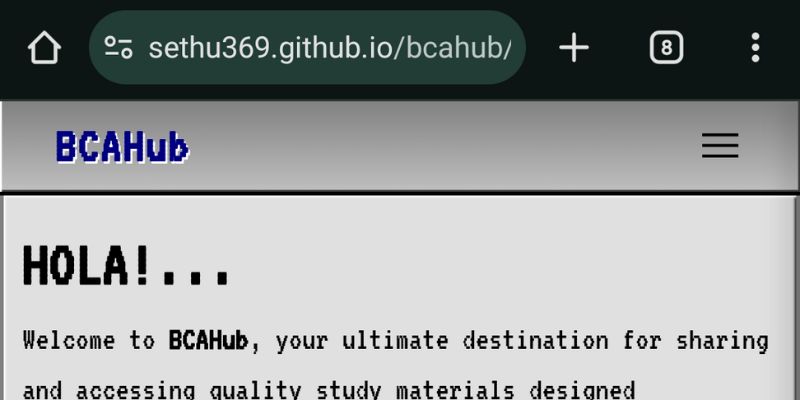
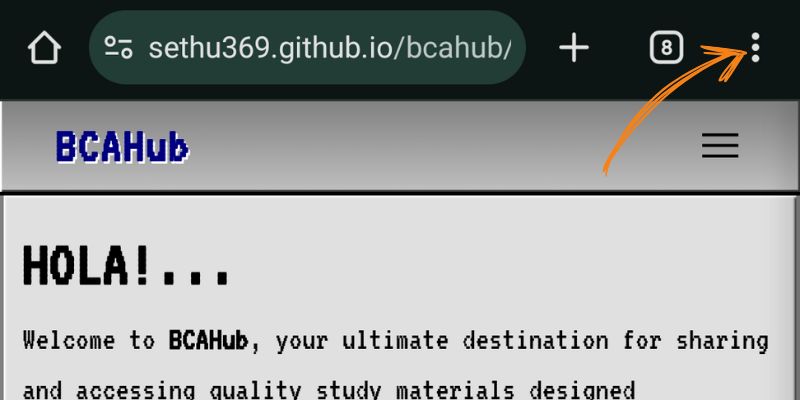
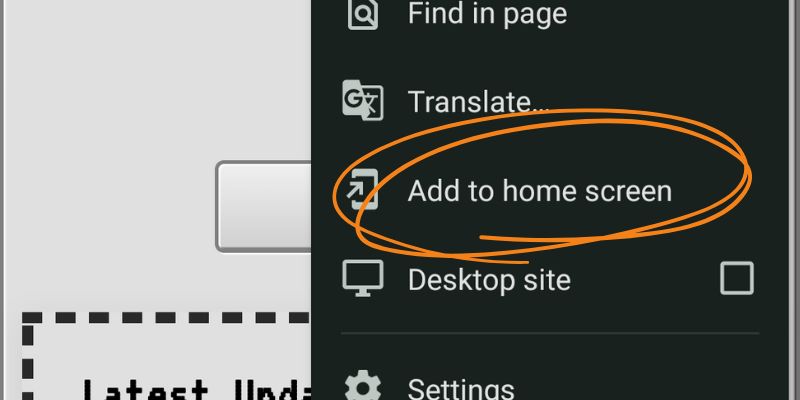
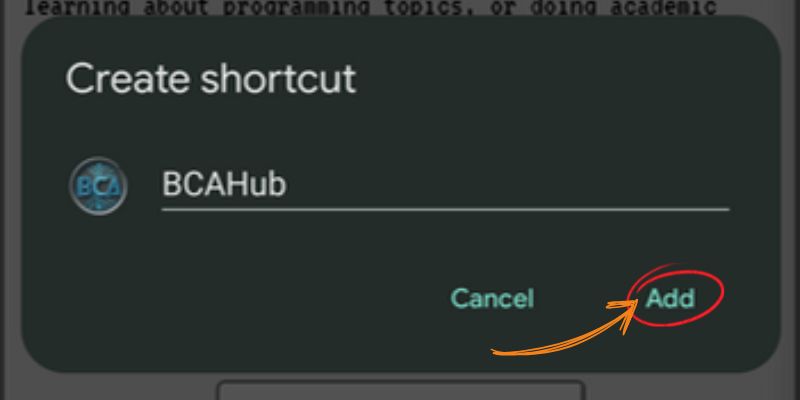
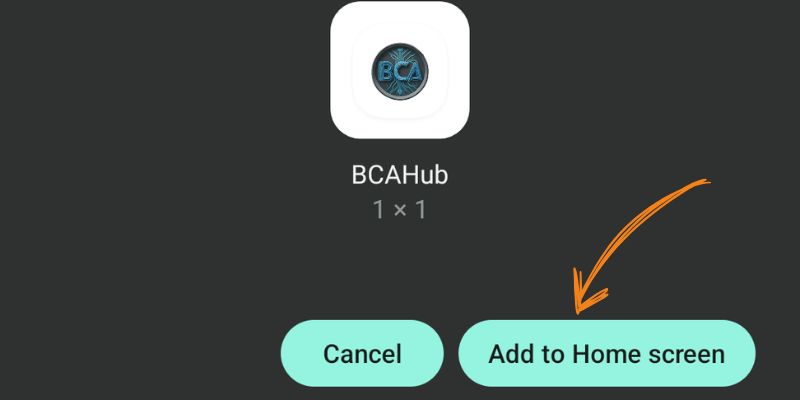
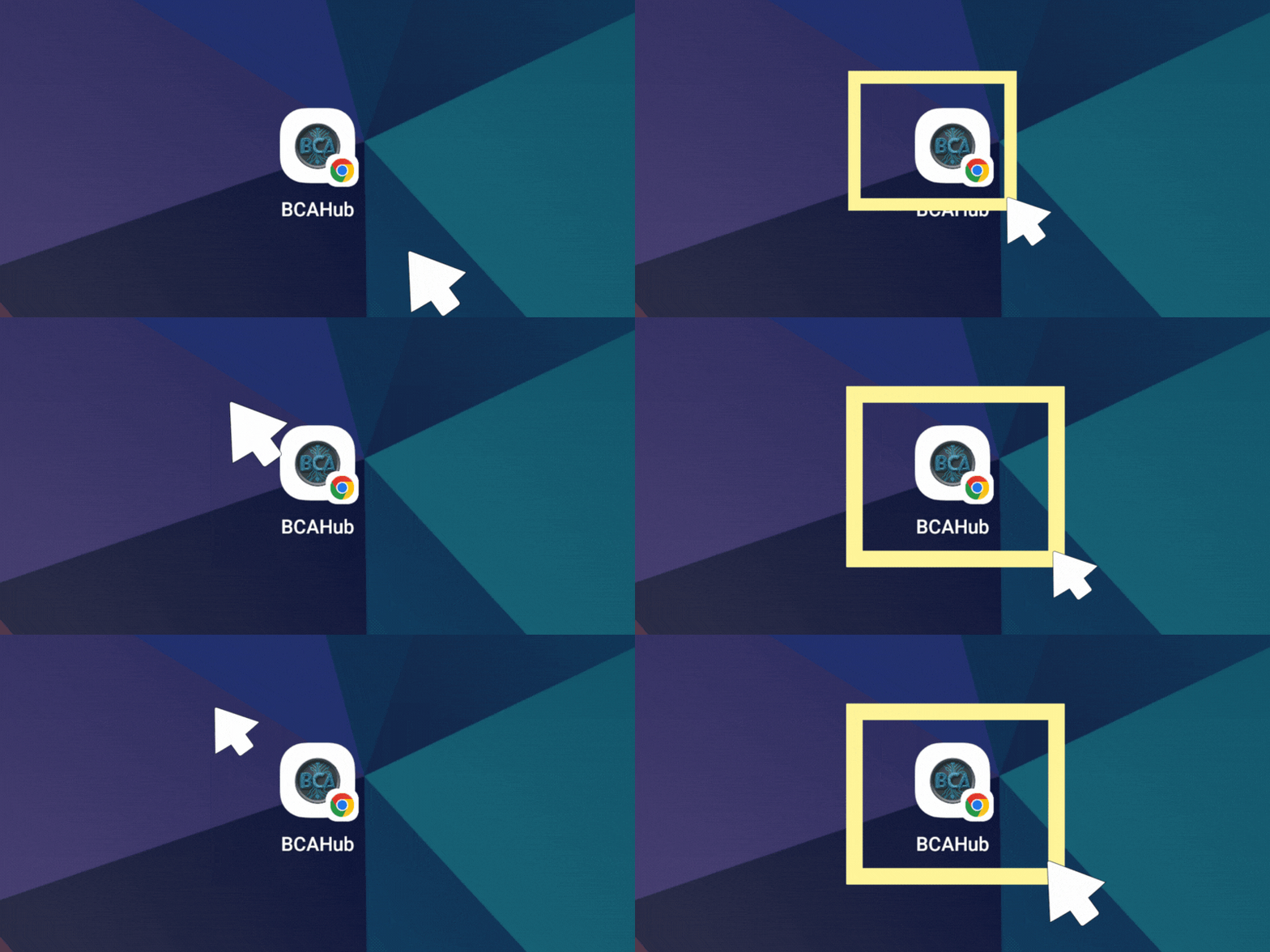
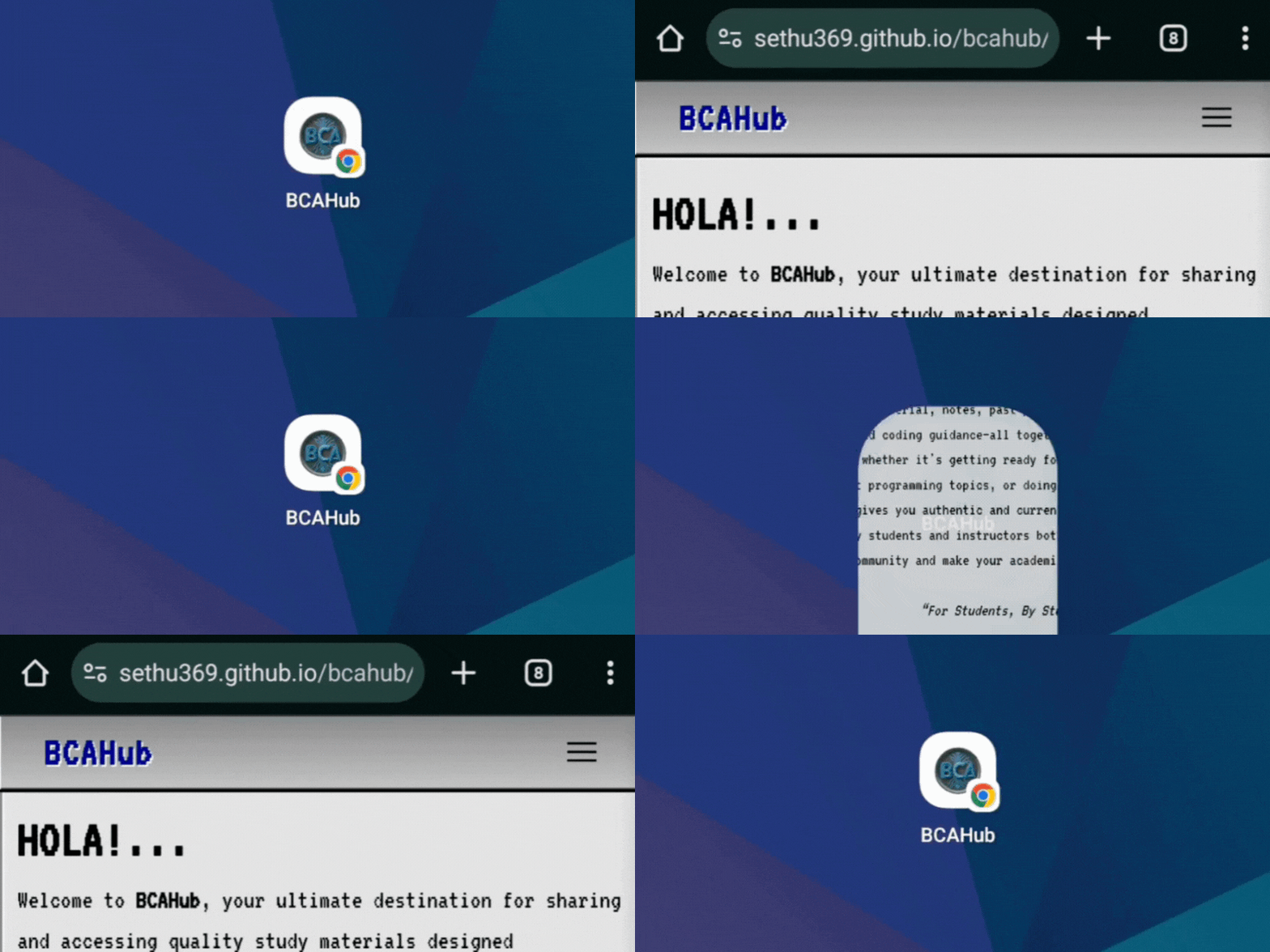
On iPhone (Safari): tap the Share button → "Add to Home Screen" → "Add".
Report it using the Broken Links form. Include the resource title and the broken URL. We'll fix it as soon as possible!
Use the Incorrect Info or Spelling Errors form. Mention the exact text, its location on the page, and the correct version. We'll correct it promptly!
Use the Add Resources form. Mention the subject name, semester, and resource type (e.g., "Please add Python Notes for 2nd Semester"). We review all requests and add them as soon as possible.
Tell us which file, what’s wrong, and we’ll review it quickly to correct the issue.
Use the Change Syllabus form. If verified, we'll update or add the changed content to match your academic year. Please attach the updated syllabus document if possible.
BCAHub covers all 5 BCA semesters with the following resource types:
- Notes & Study Materials
- Previous Year Question Papers
- Assignments
- Lab Records
- Syllabus (PDF download)
- Important Questions
All resources are free to access and download. Visit the Resources page and filter by semester or type.
Content Galaxy is a section of BCAHub featuring articles, programs, science facts, space content, and multimedia to expand your knowledge beyond the classroom. You can filter by Programs, Science, Space, Facts, Tech, and more.
You can also submit your own content to be featured in Content Galaxy!
Yes, you can delete your feedback at any time. Message us with the following details:
- Name: as used in the feedback
- Rating: the rating you gave
- Reason: why you want it deleted
We'll process the request and delete your feedback promptly.
Only basic details like name, email, or phone number if you voluntarily fill in a form. No sensitive or unnecessary data is ever collected. See our full Privacy Policy for details.
Submit a request through our Contact Us page. Your data will be removed as per our Privacy Policy. We'll confirm deletion within 5 business days.
Absolutely! BCAHub does not ask for unnecessary personal data. All files are safely hosted on trusted platforms like Google Drive and GitHub. No ads, no trackers, no paywalls.
Use the Contact Us page, email directly at generalbca@gmail.com, or message on WhatsApp. We aim to respond within 24–48 hours.
You agree to use the content for improving your knowledge only. Do not copy, sell, or misuse the materials. See our full Terms of Use for complete details.
You can contribute in several ways:
- Submit study resources (notes, question papers, etc.)
- Submit articles for Content Galaxy
- Contact Sethu to submit an app for AppVerse
- Share BCAHub with fellow BCA students — word of mouth helps most!
❓ Still Have a Question?
Didn't find your answer in the FAQs? Ask your question directly. Please clearly describe your issue and include correct details.